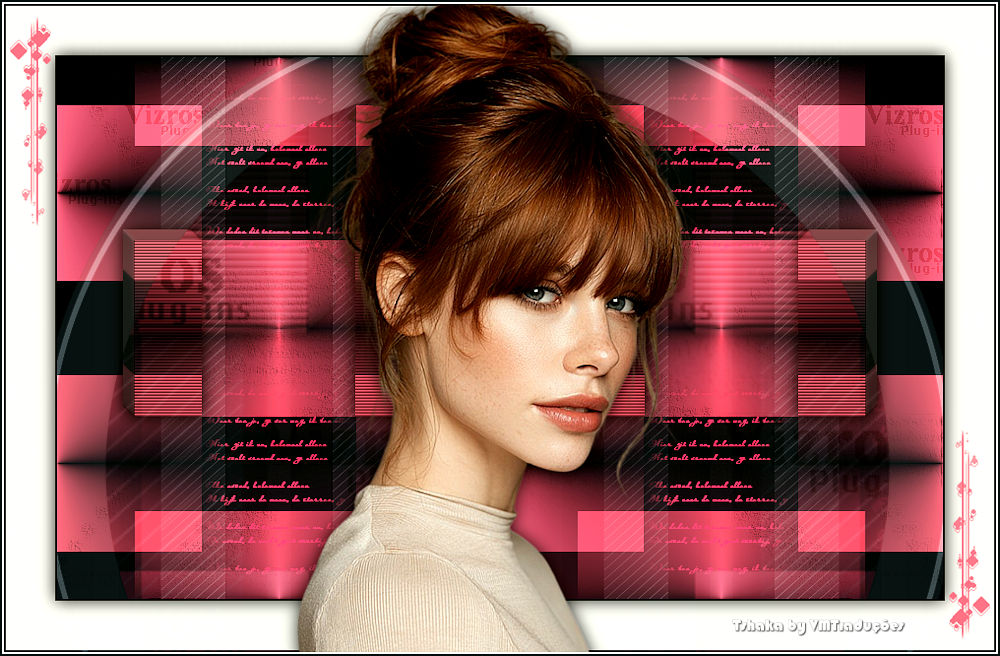
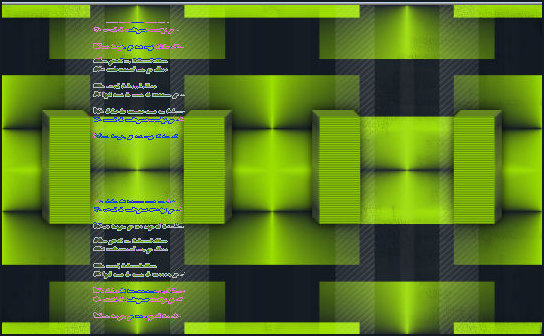
This tutorial is from Tshaka who I thank for letting me translate their tutorials.


Original here


Tubes

Material

My images: Here


Plugins

Simple - Eye Candy 5: Impact - Vizros 4


You can find these plugins on the websites of:

Renée
Cloclo

You can also find this tutorial translated into these languages:
(Click on the flag)


SCRIPT


Notes:
> Open the material / Duplicate (shift+d) / Close the originals
> Change the blend mode of the layers to match their colors.
> In older versions of PSP, Mirror Horizontal=Mirror / Mirror Vertical=Flip / Pick tool=deformation

> Open the masks in psp and minimize
>Adjust the size of the tubes according to your images


*


You will need:
1 female tube
*
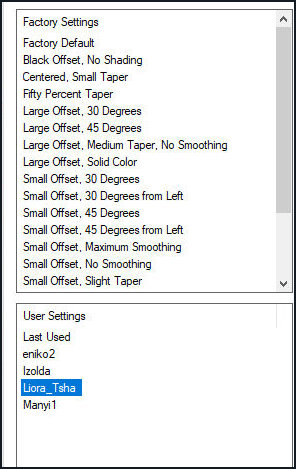
Double-click the Eye Candy preset to install it in the plugin
Open both brushes in PSP
File / Export / Custom Brush / Name / OK
Do this for both brushes
*
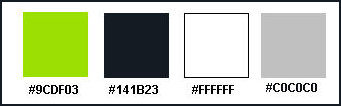
Original Colors: Foreground (light color) #9CDF03 - Background (dark color) #141b23

Open a new transparent image measuring 900x550px
Paint with the background color
Add a new layer
Paint with the foreground color
Image / Resize: 65%
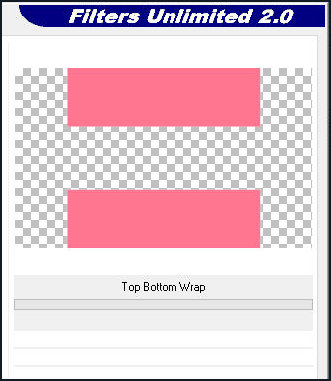
Effects / plugins / Simple / Top Bottom Wrap

Merge visible
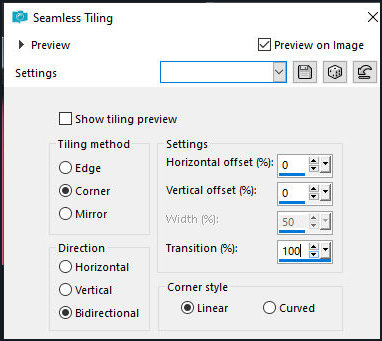
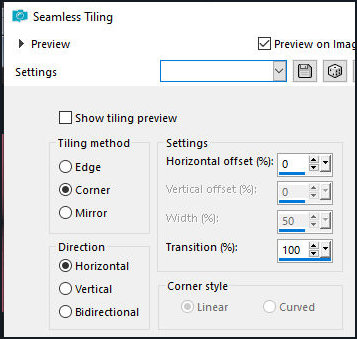
Effects / Image Effects / Seamless Tiling

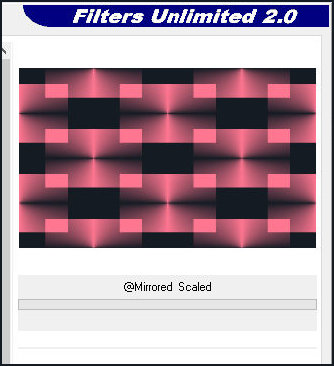
Effects / Plugins / Unlimited 2 / BKG Kaleidoscope / @ Mirrored & Scaled

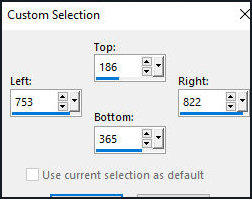
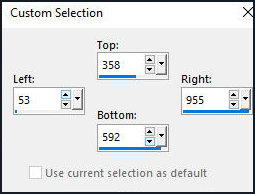
Activate the Selection Tool / Custom Selection and set:

Selections / Promote Selection to layer
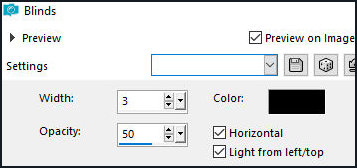
Effects / Texture Effects / Blinds - color background

Effects / Plugins / Eye Candy 5: impact / Extrude - Preset [Liora-Tsha]

Select none
Layers/Duplicate
Image / MIrror / Mirror Horizontal
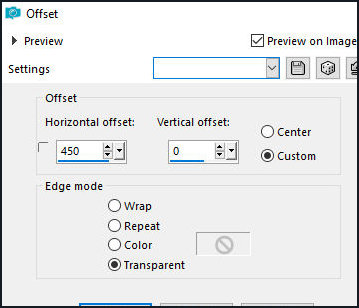
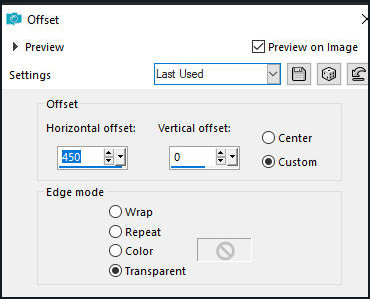
Effects / Image Effects / Offset 450/0

Merge down
Layers/Duplicate
Image / Mirror / Mirror Horizontal
Merge down
Drop Shadow: 0 0 85 25 black
Copy the tube [tube-liora-tsha]
Paste as new layer
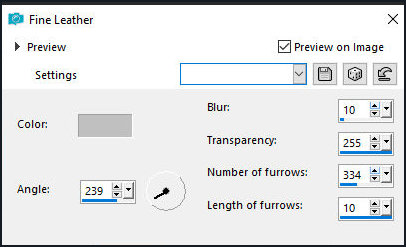
Effects / Texture Effects / Fine Leather

Layers / Arrange / Move Down
Layers / Properties / Blend mode: Multiply
Layers/Duplicate
Add new layer
Paint with white color
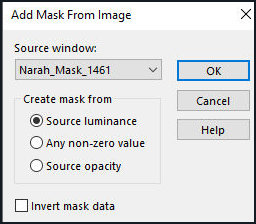
Layers / New Mask Layer / From Image / Mask [Narah_Mask_1461]

Merge Group
Effects / Image Effects / Seamless Tiling

Activate the Promoted Selection layer
Add new layer
Activate the Paint Brush and select the brush [Liora 1]
Print according to the print with the foreground color

Layers/Duplicate
Layers / Properties / Blend Mode: Multiply
Merge down
Layers/Duplicate
Effects / Image Effects / Offset 450/0

Edge:
2 px / black
50px/white
2px / black
Layers/Duplicate
Activate the Selection Tool / Custom Selection and configure it according to the print

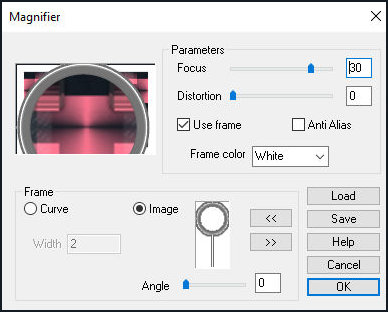
Effects / Plugins / Vizros 4 / Magnifier

Select none
Layers / Properties / Blend Mode: Soft light
Merge Visible
Selections / Select all
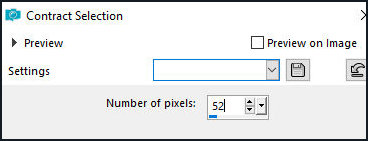
Selections/Modify/Contract: 52

Drop shadow: 0 0 85 25 black
Select none
Copy the main tube
Paste as new layer
Position as you prefer
Drop Shadow same as above
Add new layer
Activate a Paint Brush and select the [Liora] brush.
Change the size to 230.
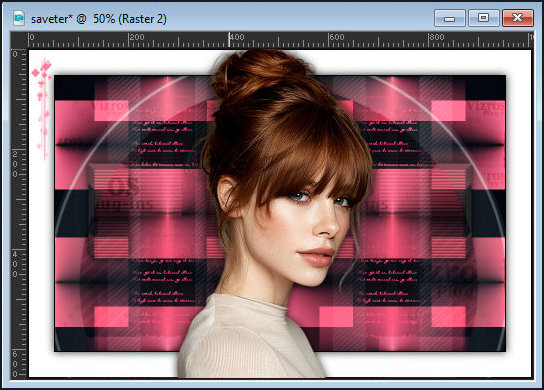
Stamp as shown in the screenshot using the foreground color.

Layers / Duplicate
Merge Down
Layers / Duplicate
Image / Mirror Horizontal
Image / Mirror / Vertical
Border:
2px / white
2px / black
Place the signatures.
Merge all.
Save as a jpeg.