|
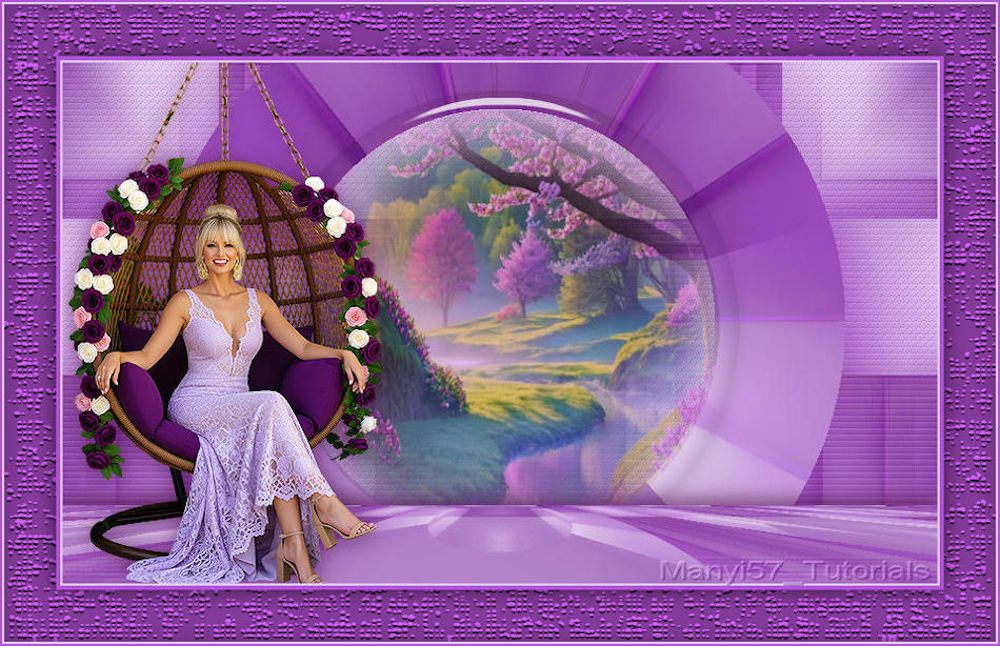
(imagem original de Manyi)
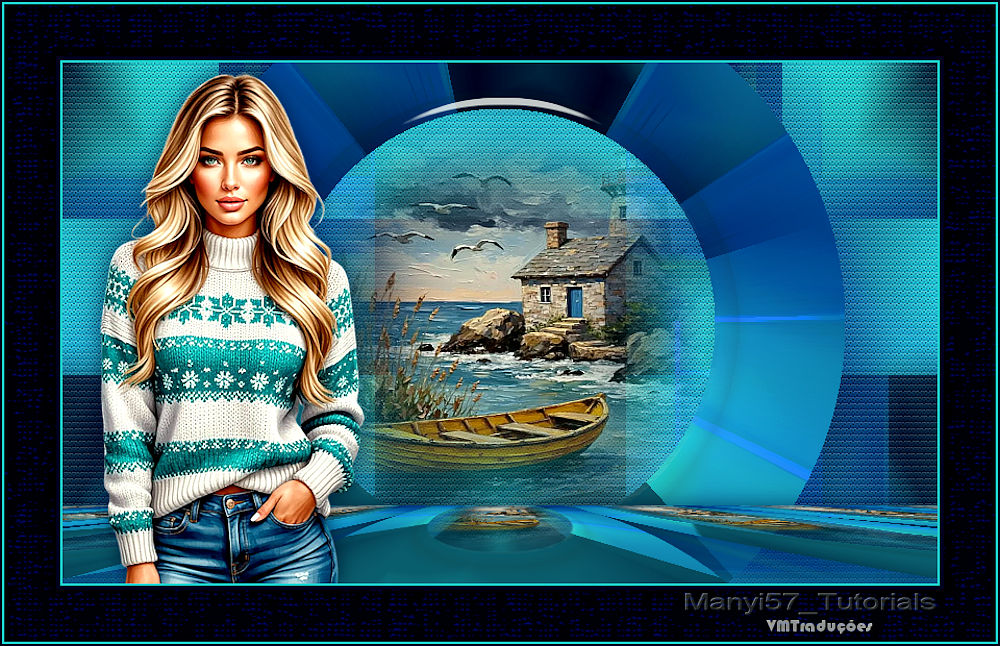
(minha versão)

This tutorial is from Manyi who I thank for
letting me translate their tutorials.

Original here
Tubes

Material

Plugins
FF Gallery B - Eye Candy 5: Impact
- Mura's Meister - Textures - Unlimited 2
You can find these plugins on the websites of:
Renée
Cloclo
You can also find this tutorial translated into these languages:
(Click on the flag)


|
Notes:
> Open the material / Duplicate (shift+d) / Close the originals
> Change the blend mode of the layers to match their colors.
> In older versions of PSP, Mirror Horizontal=Mirror / Mirror Vertical=Flip /
Pick tool=deformation
> Open the masks in psp and
minimize
>Adjust the size of the tubes according to your images
|
SCRIPT
Images:
1 female tube
1 misted landscape tube
**
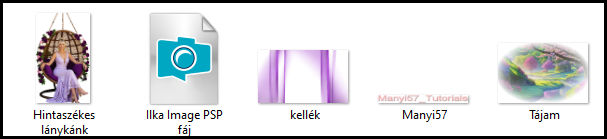
Material
**
My images
**
1. Open the alpha channel file [Ilka PSP Image] / Duplicate (shift+d)
/ Close the original
2. Set the foreground color to #e3ceed and the background color to
#8b45a8
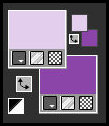
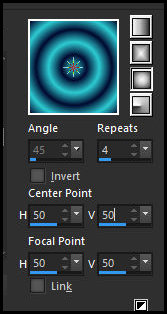
3. Prepare a Sunburst gradient
4. Copy [kellek] and paste as a new layer
5. Merge visible
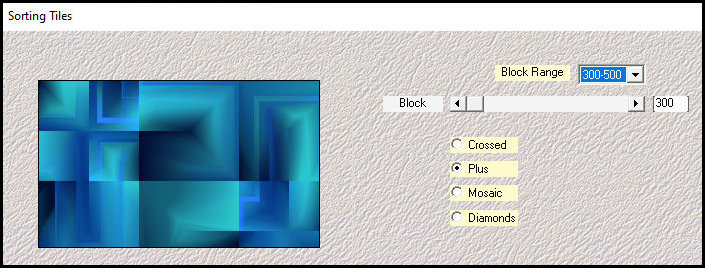
6. Effects / Plugins / Mehdi / Sorting Tiles
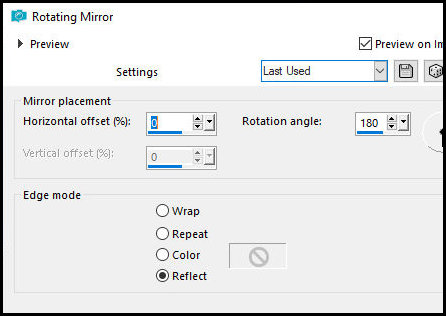
7. Effects / Reflection Effects /
Rotating Mirror
8. Layers / Duplicate
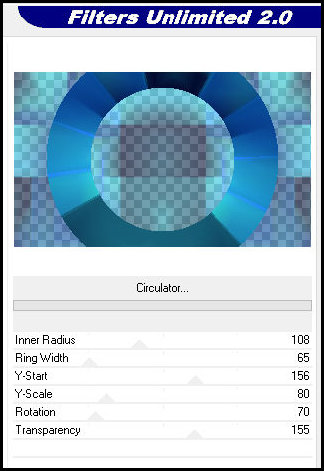
9. Effects / Plugins / Unlimited 2 / FF Gallery B / Circulator
10. Activate the background layer
11. Adjust / Blur / Gaussian Blur: 30.00
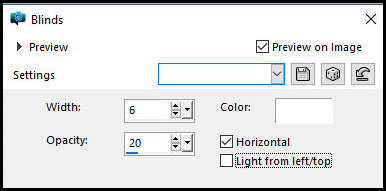
12. Effects / Texture Effects / Blinds
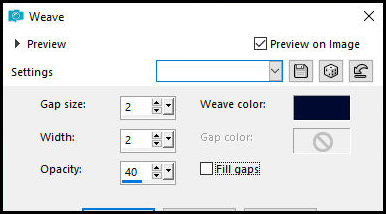
13. Effects / Texture Effects / Weave
print
14. Effects / Edge Effects / Enhance
15. Add a new layer
16. Selections / Load selection from alpha channel / Selection 1
17. Copy the landscape [Tajam] and paste it into the selection
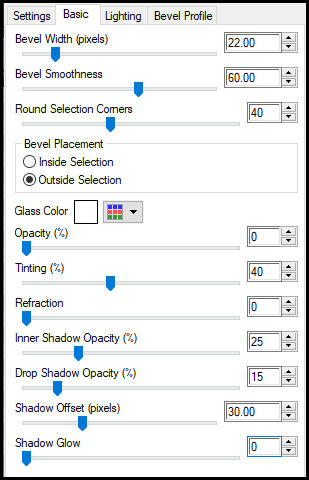
18. Effects / Plugins / Eye Candy 5: Impact / Glass
print
19. Select none
20. Activate the middle layer
21. Layers / Arrange / Move up
22. Merge down
23. Layers / Duplicate
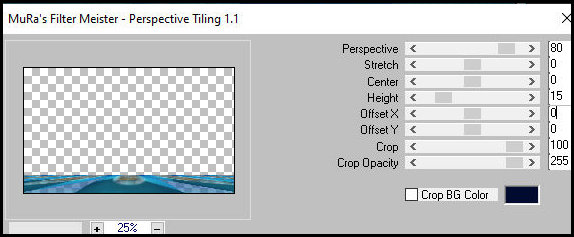
24. Effects / Plugins / Mura's meister / Perspective tiling
print
25. Drop Shadow: 0 0 60 30 #450d41
26. Layers / Arrange / Bring to top
27. Copy the main tube [Hintaszékes lánykánk] and paste it as a new
layer
28. Adjust the size
29. Activate the Pick Tool and set: X=5 Y=0 Press M (or position
manually)
30. Adjust / Sharpness / Sharpen
31. Drop Shadow: 0 0 60 30 #450d41
32. Image / Add borders / 2px / #e3ceed
33. Image / Add borders / 4px / #b154d9
34. Selections / Select all
35. Image / Add borders / 50px / #b154d9
36. Selections / Invert
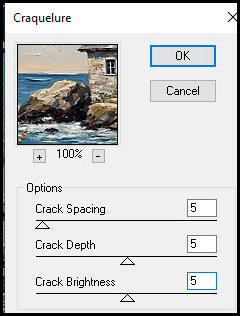
37. Effects / Plugins / Textures / Craquelure
(this effect didn't appear in my version, I think because of the
tones I chose)
print
38. Image / Add borders / 2px /
#e3ceed
39. Image / Add borders / 2px / #b154d9
40. Selections / Invert
41. Drop Shadow: 0 0 60 30,00 black
42. Select none
43. Image / Resize: 950x614px
44. Add credits
45. Merge all
46. Save as jpeg

|