|


This tutorial is from Manyi who I thank for
letting me translate their tutorials.

Original here
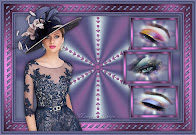
Tubes

Material

My images: Here
Plugins
GMIC - AAA Frames - Flaming Pear

You can find these plugins on the websites of:
Renée
Cloclo
You can also find this tutorial translated into these languages:
(Click on the flag)


|
Notes:
> Open the material / Duplicate (shift+d) / Close the originals
> Change the blend mode of the layers to match their colors.
> In older versions of PSP, Mirror Horizontal=Mirror / Mirror Vertical=Flip /
Pick tool=deformation
> Open the masks in psp and
minimize
>Adjust the size of the tubes according to your images
|
SCRIPT
You will need:
1 female tube
1 misted landscape tube
* Open a folder and name it gmic-buek
*
1. Open a new transparent image with 860x500px
2. Colors: Foreground: #889fcf - Background: #ffffff - 3rd color:
#3f5073
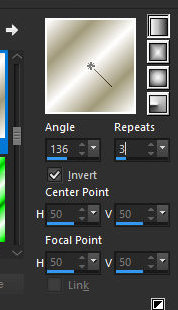
3. Prepare a Linear gradient
4. Paint the image with this
gradient
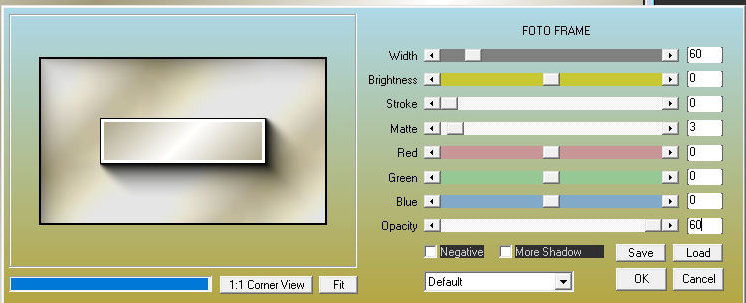
5. Effects / Plugins / AAA Frames / Photo Frame
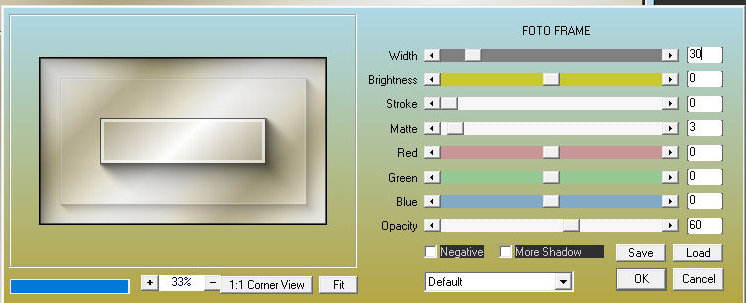
6. Effects / Plugins / AAA Frames /
Photo Frame
7. Effects / Plugins / AAA Frames /
Photo Frame
8. Image / Resize: 80% - all layers
unchecked
9. Effects / Plugins / Flaming Pear / Flexify 2
10. Activate the Pick Tool and
configure: X=0 - Y=250 - Press M
11. Layers / Duplicate
12. Image / Mirror / Mirror Vertical
13. Merge Down
14. Effects / Image Effects / Seamless Tiling - default
15. Add new layer
16. Paint with foreground color
17. Layers / Arrange / Send to Bottom
18. Adjust / Add/Remove Noise / Add Noise
19. Copy the misted landscape tube
Paste as a new layer
20. Image / Resize: 350x350px - all layers and aspect ratio
unchecked
21. Activate the Top Layer
22. Copy the [Deco] tube
23. Paste as a new layer
24. Do not move
25. Merge visible
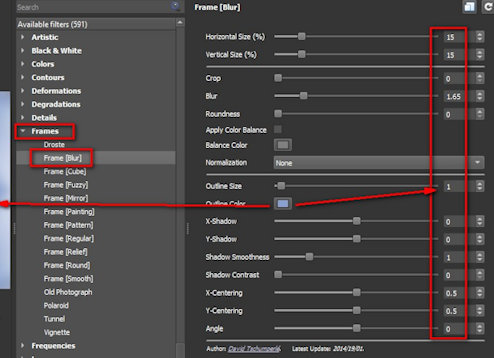
26. Effects / Plugins / GMIC-QT / Frames / Frame Blur
27. Return to PSP
28. Save in the GMIC-Buek folder with the number 1
29. Open the image 1. Delete the other image (or save it to delete
later)
30. Continue editing the new image 1
31. Add a new layer
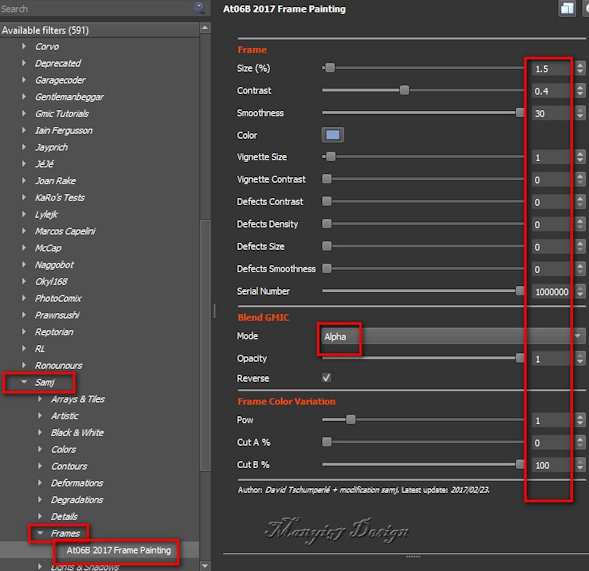
32. Effects / Plugins / GMIC-QT / Testing / SAMJ / Frames /
At06B-2017 Frame Painting
33. Layers / Duplicate
34. Image / Resize: 940x580px - all layers and aspect ratio
unchecked
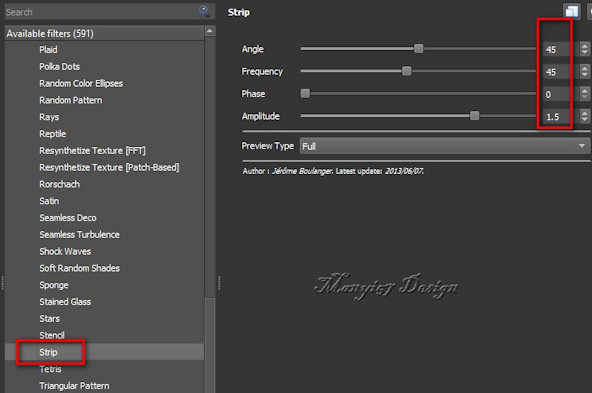
35. Effects / Plugins / GMIC-QT - Patterns / Strip
36. Copy the tube [5Manyi 57 Design]
37. Paste as a new layer
38. Activate the Pick Tool and configure: X=596 - Y=15 or position
manually if using another tube
Press M
39. Adjust / Sharpness / Sharpen
40. Drop Shadow: 0 0 60 30 #3F5073
41
Activate the outer frame layer - Raster 1 (second from bottom to top)
42 Layers / Properties / Bring to top
43 Copy the title (BUEK)
44 Paste as a new layer
45 Activate the Pick Tool and configure: X=100 - Y=111
46 Add the signatures
Merge all
Image / Resize: 950x604px (optional)
Save as jpeg

|