|
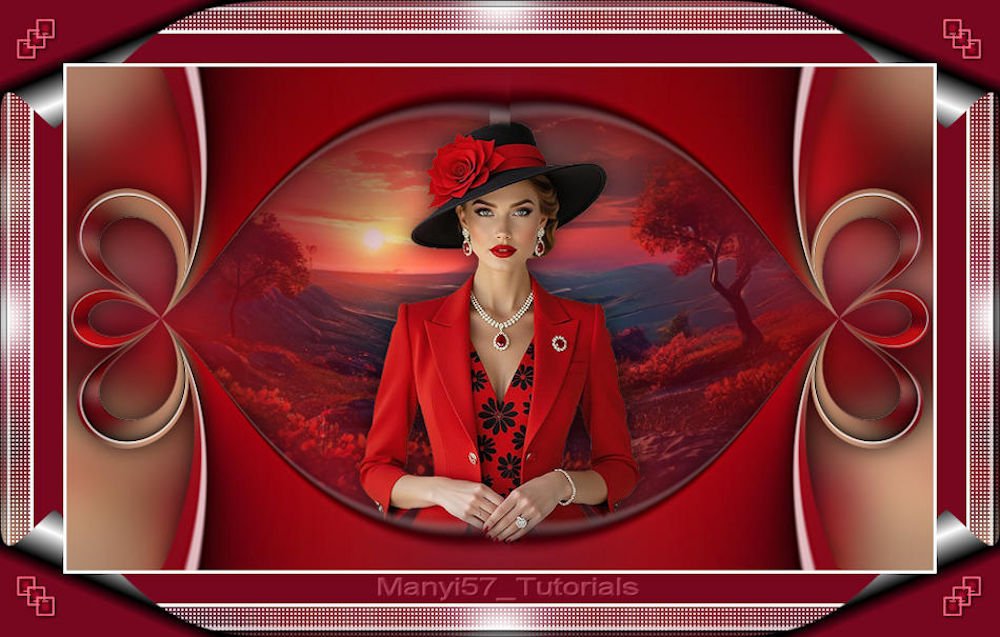
(versão original)
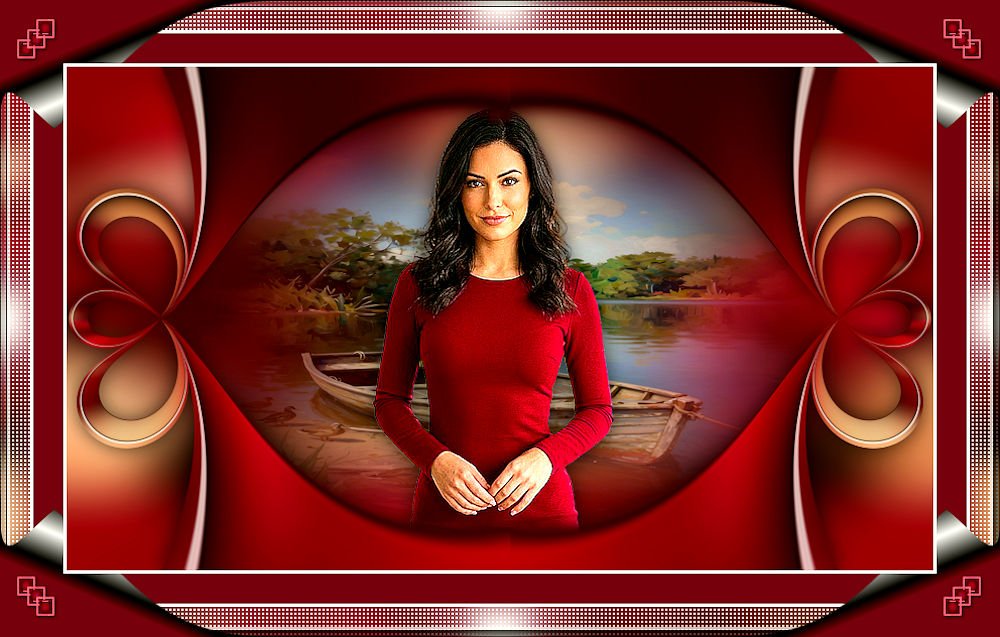
(Minha versão)

This tutorial is from Manyi who I thank for
letting me translate their tutorials.

Original here
Tubes

Material

Plugins
Flaming Pear - AAA Frames - AFS
Import
You can find these plugins on the websites of:
Renée
Cloclo
You can also find this tutorial translated into these languages:
(Click on the flag)


|
Notes:
> Open the material / Duplicate (shift+d) / Close the originals
> Change the blend mode of the layers to match their colors.
> In older versions of PSP, Mirror Horizontal=Mirror / Mirror Vertical=Flip /
Pick tool=deformation
> Open the masks in psp and
minimize
>Adjust the size of the tubes according to your images
|
SCRIPT
Images:
1 female tube
1 landscape
***
My images
***
1. Open a new transparent image, 860x500px
Flood fill with color #77071f
2. Selections - Select all
Copy the main tube and paste into the selection
3. Select none
Effects - Image Effects - Seamless Tiling - default
4. Adjust - Blur - Gaussian Blur: 25
5. Layers - Duplicate
Image - Resize: 80% - "all layers" unchecked
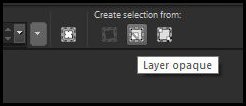
6. Activate the Selection Tool - Layer Opaque
7. Effects - Plugins - AAA Frames - Foto Frame
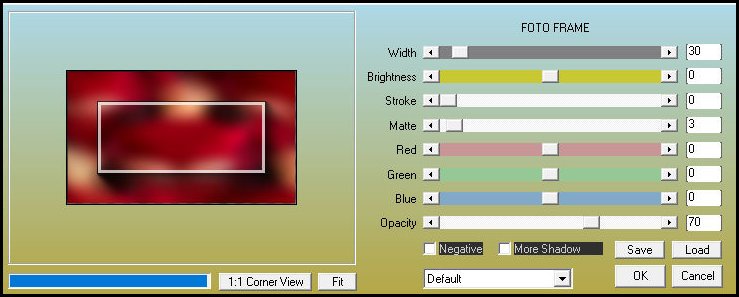
8. Selections - Modify - Contract: 40
9. Press Delete
Select none
10. Effects - Plugins - Flaming Pear - Flexify 2
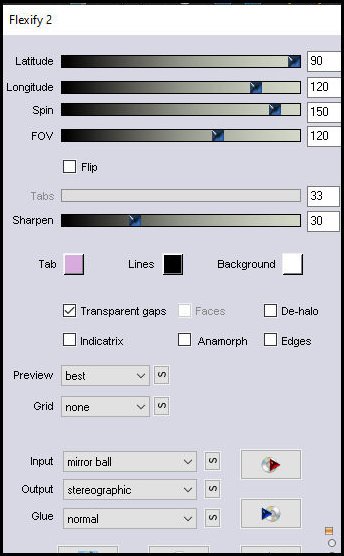
11. Pick Tool (K) - X=420 Y=0 - Press M
12. Layers - Duplicate
Image - Mirror - Mirror Horizontal
13. Merge down
14. Open the landscape
Image - Resize 662x425px - "all layers" checked
Copy
Activate the background layer - Raster 1
Paste as new layer
15. Copy the female tube
Paste as new layer
Image - Resize: 279x420px "all layers" unchecked (adjust size
according to your tube)
Pick Tool (K) - X=290 - Y=55 - Press M
16. Activate the top layer and manually erase the seam trace from
the duplicated images above, located at the woman's hand
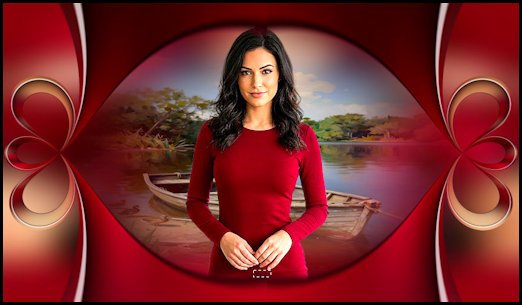
17. Activate the female tube layer - Raster 3
Adjust - Sharpness - Sharpen
18. Drop Shadow: 0 0 65 30 black
19. Activate the top layer
Drop Shadow: 0 0 65 30 black
20. Image - Add borders - 3px - white
Image - Add borders - 30px - #77071f
Image - Add borders - 3px - white
21. Selections - Select all
Image - Add borders - 30px - white
22. Effects - Image Effects - Seamless Tiling - Default
23. Selections - Invert
Adjust - Blur - Gaussian Blur: 15
24. Keep selection
Effects - Plugins - Unlimited 2 - AFS Import - sqborder2
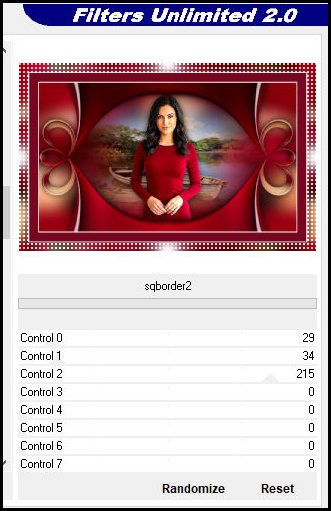
25. Effects - Plugins - AAA Frames - Foto Frame
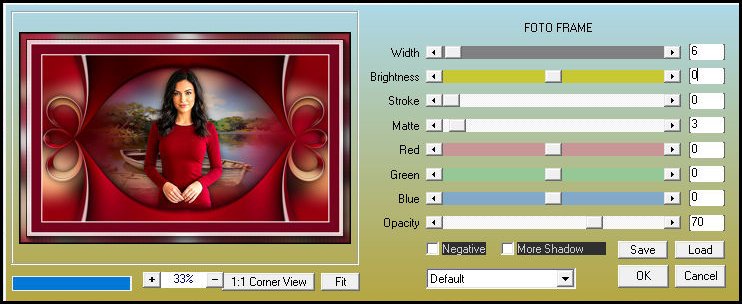
26. Selections - Select all
Selections - Modify - Contract: 63
27. Selections - Invert
Effects - Image Effects - Page Curl - Top left corner
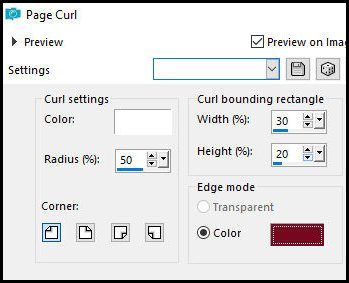
28. Effects - Image Effects - Page Curl - Bottom left corner
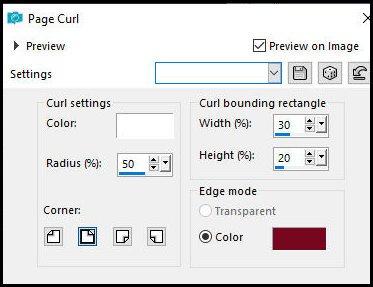
29. Effects - Image Effects - Page Curl - Top right corner
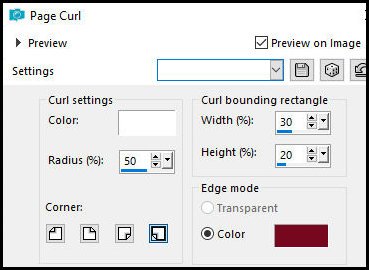
30. Effects - Image Effects - Page Curl - Bottom right corner
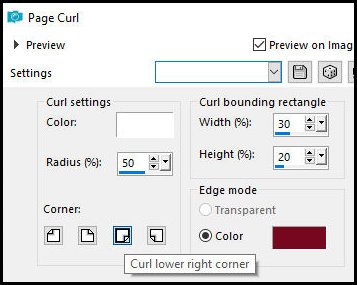
31. Select none
Copy the deco tube
Paste as new layer
Do not move
32. Merge all
33. Image - Resize: 950x605px - "all layers" checked (optional)
Add credits
Merge all
Save as JPEG

|