|
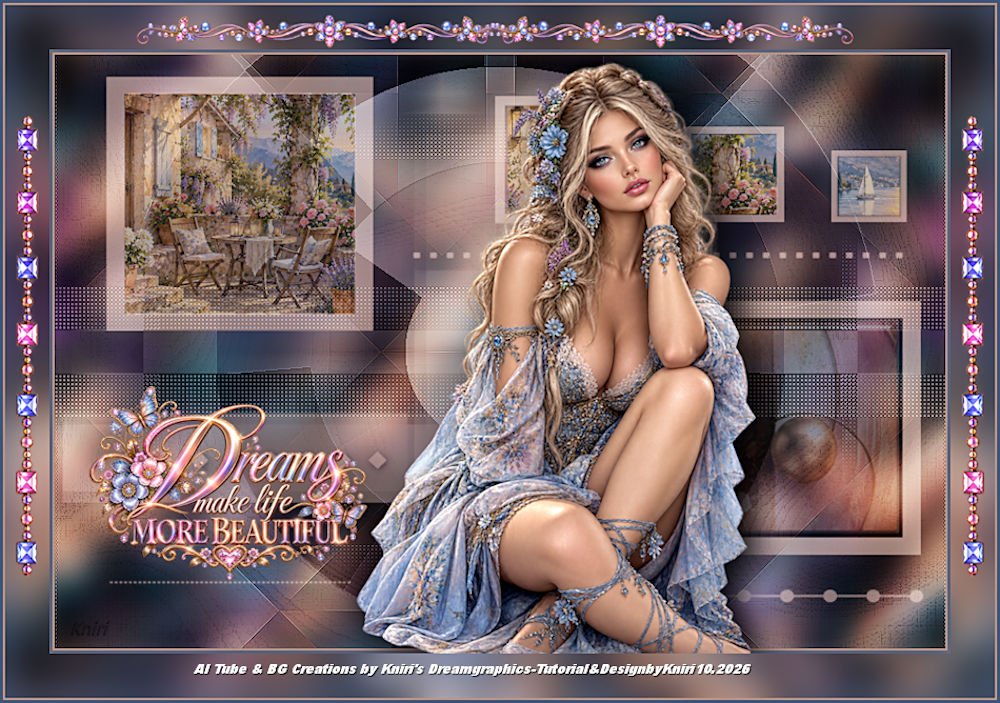
(imagem original de Kniri)
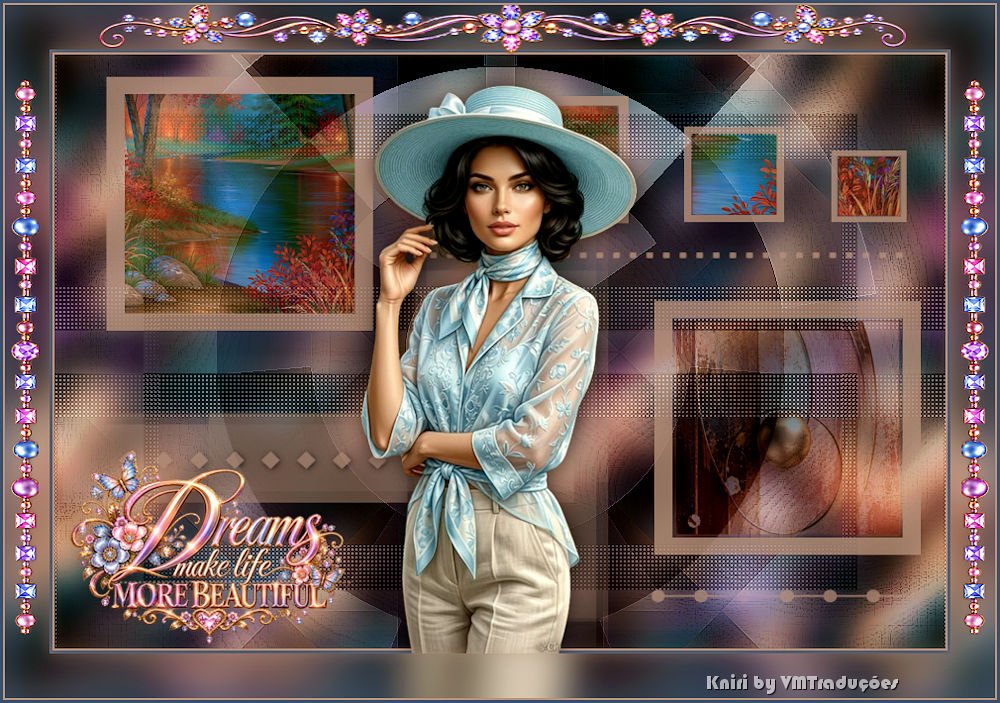
(minha versão)

This tutorial is from Kniri who I thank for
letting me translate their tutorials.

Original here

Tubes

Material

Plugins
Unlimited 2 - AFS IMPORT - VM
Toolbox - Deformation
You can find these plugins on the websites of:
Renée
Cloclo
You can also find this tutorial translated into these languages:
(Click on the flag)


|
Notes:
> Open the material / Duplicate (shift+d) / Close the originals
> Change the blend mode of the layers to match their colors.
> In older versions of PSP, Mirror Horizontal=Mirror / Mirror Vertical=Flip /
Pick tool=deformation
> Open the masks in psp and
minimize
>Adjust the size of the tubes according to your images
|
SCRIPT
Materials:
1 female tube
One landscape (background)
***
Save selections in the PSP's Selections folder
***
1. Colors: Foreground: #b29286 - Background: #415579
Open the file [Image 1] (duplicate (shift+d) - Close the original)
Layers - Duplicate
Effects - Plugins - Unlimited 2 - BKG Kaleidoscope - @BlueBerry Pie
Blend mode: Soft Light
Resize: 80% - all layers unchecked
Effects - Plugins - Unlimited 2- AFS IMPORT - sqborder2
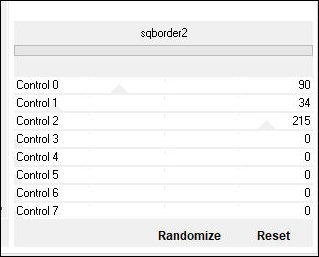
2
Effects - Image Effects - Seamless Tiling
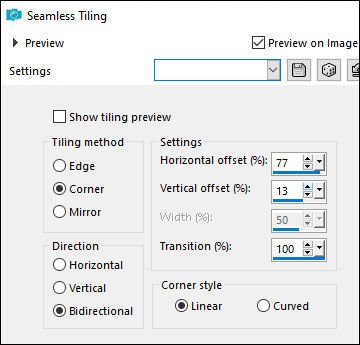
Effects - Edge Effects - Enhance
3
Effects - Unlimited 2 - VM Toolbox - MirrororriM
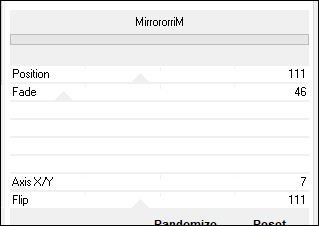
Drop shadow: 0 0 60 25 white
4
Effects - Plugins - Unlimited 2 - Kaleidoscope - Easy Corner
UpperLeft
Adjust - Sharpness - Sharpen
Result 1
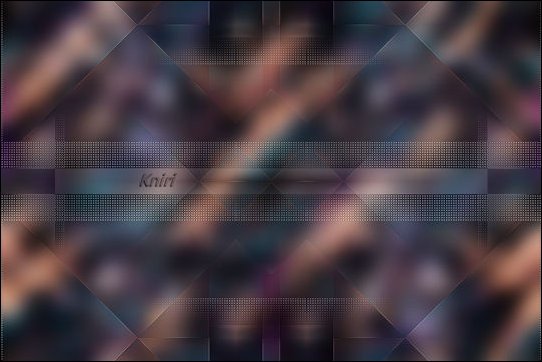
5
Layers - Duplicate
Resize: 80% - all layers unchecked
Image - Free rotate - Right /90
Effects - Unlimited 2 - Deformation - Circle Cell [37/83]
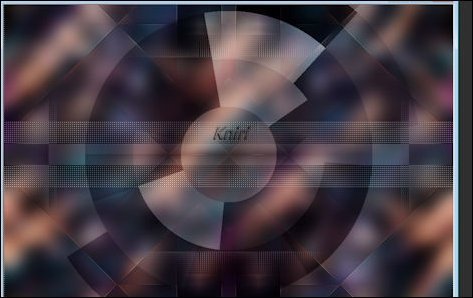
6
Effects - Reflection Effects - Rotating Mirror - default
Effects - Edge Effects - Enhance
Activate the background layer
Add new layer
Paint with white color
Layers - New mask layer - From image - Mask [Narah-Mask-1477]
Merge group
Effects - Edge Effects - Enhance More
Blend mode: overlay - opacity: 55%
Result 2
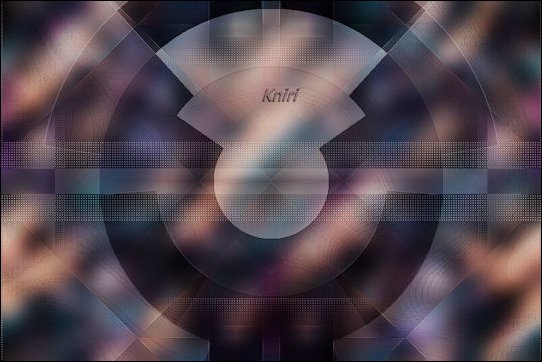
7
Activate the top layer
Add new layer
Paint with the foreground color
Layers - New mask layer - From image - Mask [creation.tine-Masque074]
Merge group
Blend Mode; Lighten - Opacity: 80%
Selections - Load selection from disk - Selection [k12]
Copy the background
Paste as a new layer
Using the Move tool, position the image within the selection as you
prefer
Adjust the size
Selections - Invert
Press Delete
Select none
Layers - Arrange - Move Down
Opacity: 60%
8
Activate the top layer
Selections - Load selection from disk - Selection [k13]
Copy your background
Paste as a new layer
Adjust within the selection using the Move tool
Adjust the size
Selections - Invert
Press Delete
Select none
Layers - Arrange - Move Down
Opacity: 60%
Activate the top layer
Selections - Load selection from disk - Selection [k14]
Copy the background [image 16]
Add a new layer
Paste into the selection
Select none
Layers - Arrange - Move Down
Blend Mode: Soft Light
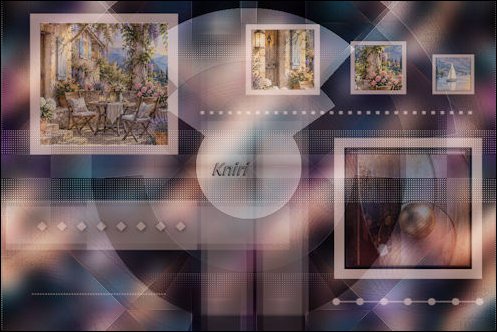
Result 3
9.
Border - 2px - foreground color
Border - 3px - background color
Copy your main tube
Paste as a new layer
Adjust the size
Position according to the example
Apply a drop shadow of your choice
Copy the [text]
Paste as a new layer
Adjust the size
Position in the bottom-left corner according to the example
Merge visible
Copy
Selections - Select All
Border - 45px - white
Selections - Invert
Paste the image currently in memory into the selection
Adjust - Blur - Gaussian Blur: 18
Drop Shadow: 0 0 50 25.00 foreground color
Selections - Invert
Repeat the drop shadow
Select none
10
Open the file [dekokniriai]
Choose one of the elements and copy it
Adjust the size if necessary
Position it on the border as you prefer
Add credits
Border - 2px - foreground color
Border - 3px - color For the background:
Adjust - Sharpness - Unsharp Mask [2-30-2-unchecked]
Resize: 900px (width) or as you prefer

|