|

This tutorial is from Esmakole who I thank for
letting me translate their tutorials.

Original here
Tubes

Material

My images: Here
Plugins
Color Rave - Unlimited 2 - Italian
Editors Effects
You can find these plugins on the websites of:
Renée
Cloclo
You can also find this tutorial translated into these languages:
(Click on the flag)


|
Notes:
> Open the material / Duplicate (shift+d) / Close the originals
> Change the blend mode of the layers to match their colors.
> In older versions of PSP, Mirror Horizontal=Mirror / Mirror Vertical=Flip /
Pick tool=deformation
> Open the masks in psp and
minimize
>Adjust the size of the tubes according to your images
|
SCRIPT
You will need:
1 female tube
*
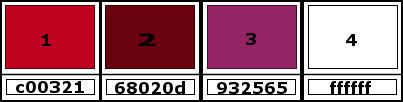
Original colors: Foreground:
#c10321 - Background: #68020D
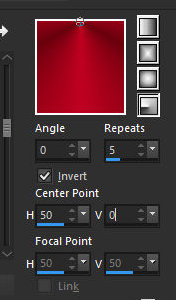
Prepare a Radial gradient
Open the alpha file [Alphablad] / Duplicate (shift+d) / Close the
original
Paint the image with the gradient
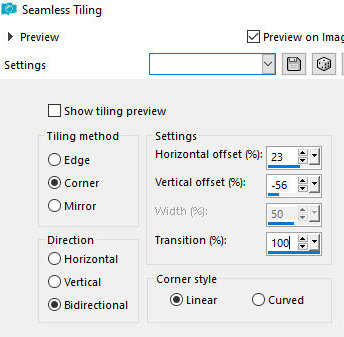
Effects / Image Effects / Seamless tiling
Layers / Duplicate
Image / Mirror / Mirror Horizontal
Layers / Properties / Opacity: 50%
Merge down
Layers / Duplicate
Image / Mirror / Mirror Vertical
Layer s / Properties / Opacity: 50%
Merge down
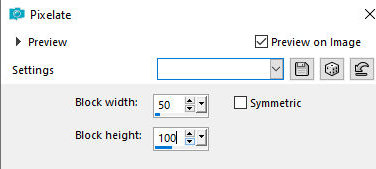
Effects / Distortion Effects / Pixelate
Effects / Edge Effects / Enhance More
Layers / Duplicate
Add a new layer
Paint with white
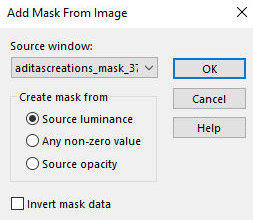
Layers / New Mask layer / From image / Mask [Aditascreations_mask
37]
Merge Group
Layers / Arrange / Move down
Layers/ Properties / Opacity: 53%
Activate the top layer
Layers / Properties / blend Mode: Soft Light
Activate the middle layer (from the mask)
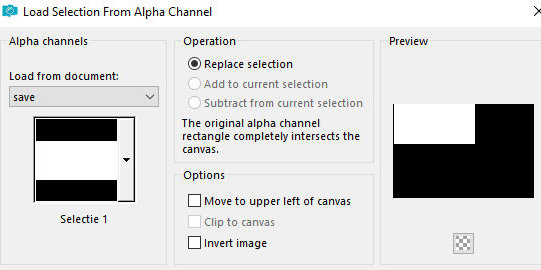
Selections / Load selection from alpha channel / Selection 1
Selections / Promote selection to layer
Select none
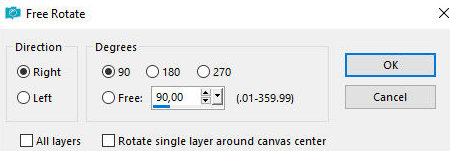
Image / Free Rotate - Right 90
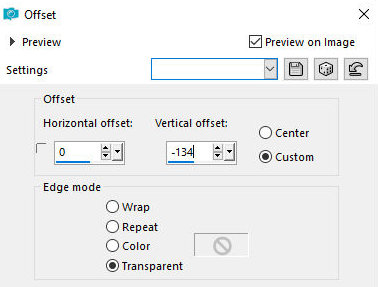
Effects / Image Effects / Offset 0/-134
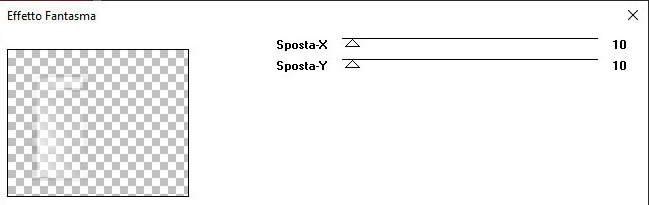
Effects / Plugins / Italian Editors Effects / Effetto Fantasma
Activate the top layer
Add new layer
Paint the layer with the background color: #68020D
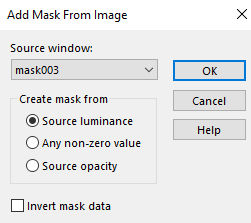
Layers / New Mask Layer / From Image / Mask [mask003]
Merge group
Layers/ Properties / Opacity:48
Effects / Edge Effects / Enhance
Activate the Group Raster 2 layer (second from the bottom)
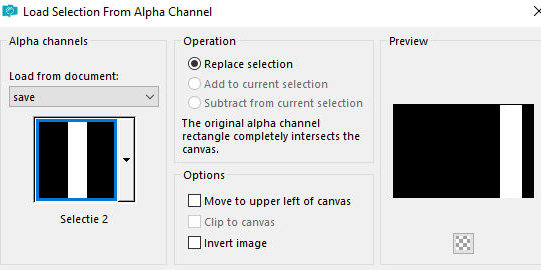
Selections / Load selection from alpha channel / Selection 2
Selections / Promote selection to
layer
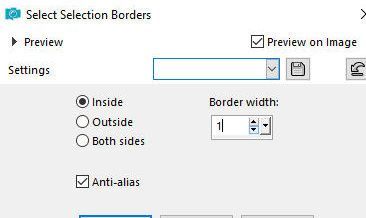
Selections / Modify / Select selection borders
Activate the top layer
Add a new layer
Paint the selection white (zoom in)
Select none
Activate the bottom layer
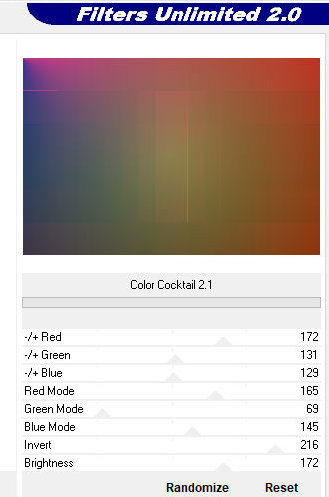
Effects / Plugins / Unlimited 2 / Color Rave / Color Cocktail 2.1 -
default
Layers / Duplicate
Image / Mirror / Mirror Horizontal
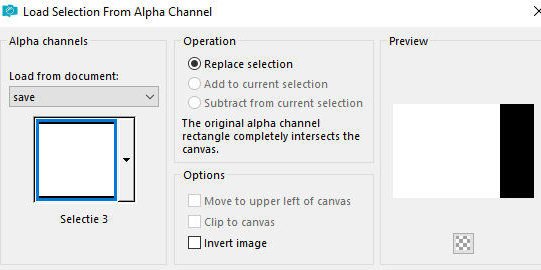
Selections / Load selection from alpha channel / selection 3
Press Delete
Select none
Merge all
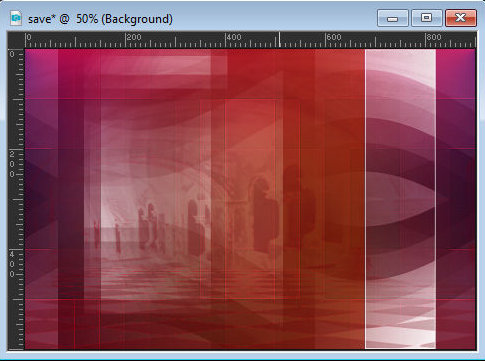
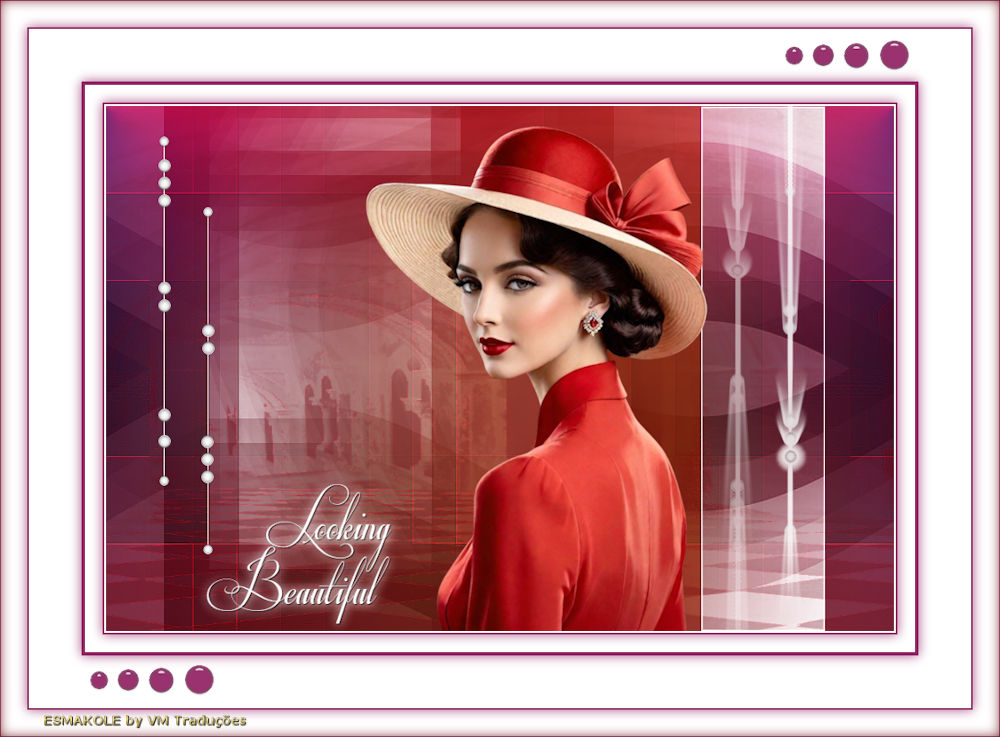
The image will look like this:
Copy the tube [Leny-vrouw1502a]
Paste as a new layer
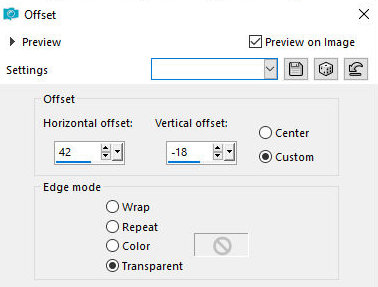
Effects / Image Effects / Offset 42/-18
Copy the tube [leny-deco]
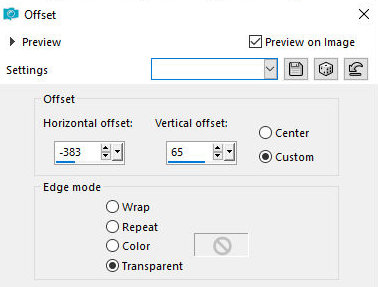
Paste as a new layer
Effects / Image Effects / Offset -383/65
Copy the tube [leny-deco2]
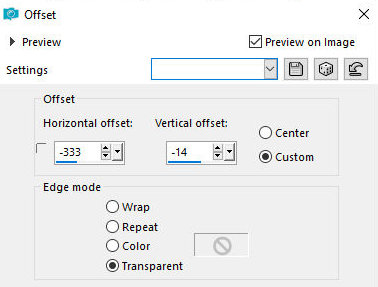
Paste as a new layer
Effects / Image Effects / offset -333/-14
Copy the tube [leny-deco3]
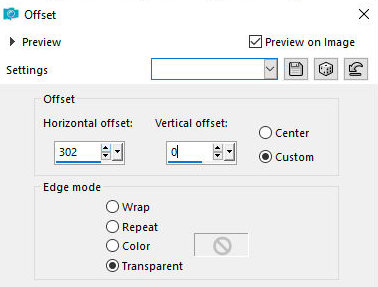
Paste as a new layer
Effects / Image Effects / Offset 302/0
Copy the tube [leny-text]
Paste as a new layer
Position as desired
Merge all
Border:
2px / white
2px / color 3
Selections / Select all
Border: 20px / white
Drop shadow: 0 0 80 20 color 3
Select none
Border: 4px / color 3
Selections / Select all
Border: 60px / white
Drop shadow: 0 0 80 20 color 3
Select none
Border: 2px / color 3
Selections / Select all
Border: 30px / white
Drop shadow - same as before
Select none
Border: 1px / color 3
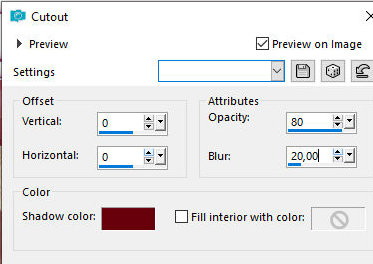
Selections / Select all
Effects / 3D Effects / Cutout - color 2
Select none
Copy the tube [leny-deco4]
Paste as a new layer
Do not move
Add the signatures
Merge all
Image / Resize: 900px
Save as jpeg

|