|
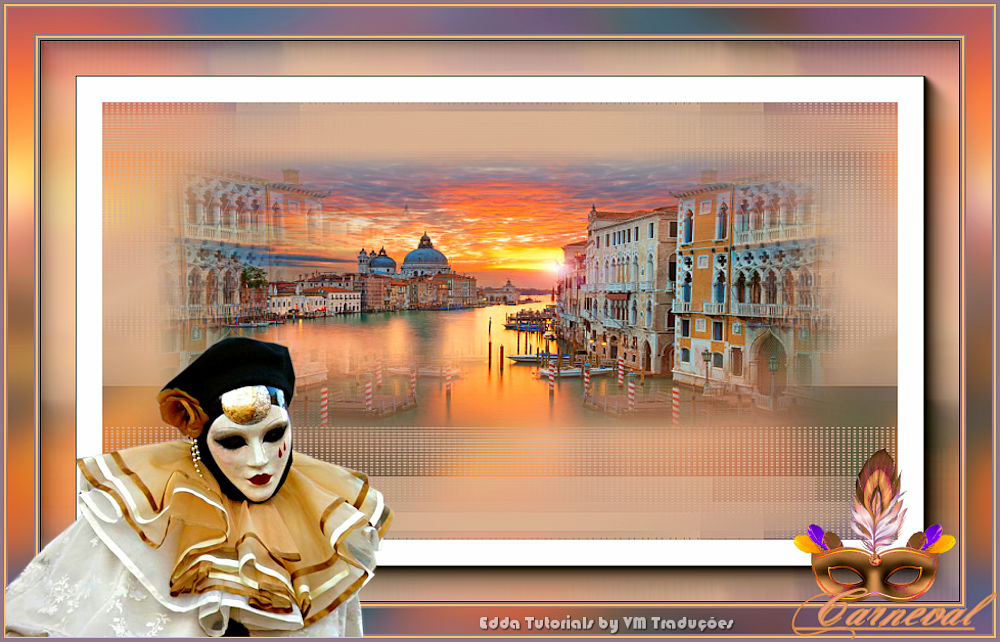

This tutorial is from Edda Tutorials who I thank for
letting me translate their tutorials.

Original here

Tubes

Material

Plugins
AAA Frames
You can find these plugins on the websites of:
Renée
Cloclo
You can also find this tutorial translated into these languages:
(Click on the flag)


|
Notes:
> Open the material / Duplicate (shift+d) / Close the originals
> Change the blend mode of the layers to match their colors.
> In older versions of PSP, Mirror Horizontal=Mirror / Mirror Vertical=Flip /
Pick tool=deformation
> Open the masks in psp and
minimize
>Adjust the size of the tubes according to your images
|
SCRIPT
Images:
1 main tube related to the theme
1 decorative tube
1 landscape related to the theme
*
Save the selection in the PSP
Selections folder
*
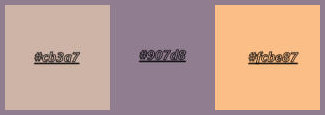
1 Colors: Foreground: #ceb4a7 -
Background: #907d90 - 3rd color: #fbbe87
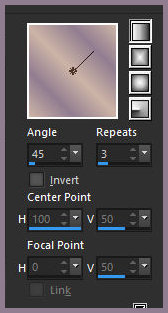
Prepare this gradient
2
Open a new transparent image with
900x550px
Paint the image with the gradient
Add a new layer
Selections / Select all
Copy [istockphoto-491396]
Paste into the selection
Select none
3
Effects / Image Effects /
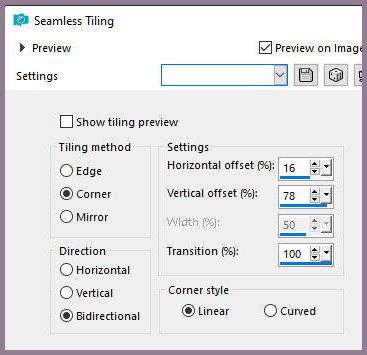
Seamless Tiling
Adjust / Blur / Gaussian blur: 20
Activate the Raster 2 layer
Copy and paste as a new image / minimize, we will use it later
4
Return to the main image
Add a new layer
Paint with the color of foreground
Layers / New Mask Layer / From Image / Mask [mask]
Effects / Edge Effects / Enhance
Merge group
5.
Layers / Duplicate
Image / Mirror / Mirror Horizontal
Merge down - 3 times
Activate layer Raster 1
Copy (will be in memory)
6.
Selections / Select all
Selections / Modify / Contract: 45
Paste the image from memory into the selection
Select none
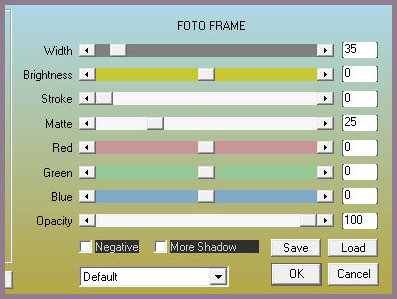
Effects / Plugins / AAA Frames / Photo Frame
7.
Selections / Load selection from
disk / Selection [carneval]
Add new layer
Copy [venecia.pspimage]
Paste into selection
Layers / Duplicate
Image / Mirror / Mirror Horizontal
Select none
Merge down - 2 times
Merge all
8.
Image / Add Borders / 2 px /
background color
Image / Add Borders / 2 px / color #fbbe87
Image / Add Borders / 2 px / background color
Selections / Select all
Image / Add Borders / 25 px / background color
Selections/Invert
Copy Raster 2 (the one that was minimized at the beginning)
Paste into selection
Select none
9
Image / Add Borders / 2 px / background color
Image / Add Borders / 2 px / color #fbbe87
Image / Add Borders / 2 px / background color
10
Copy [venecia.pngimage]
Paste as new layer
Image / Resize: 70% - all layers unchecked
Objects/Align/Bottom
Objects/Align/Left
Copy [carnevaltekst.png]
Paste as new layer
Objects/Align/Bottom
Objects/Align/Right
Merge all
Image / Add Borders / 2 px / background color
Adjust/Sharpness/Sharpen
Image / Resize: 900px (width)
Add credits
Merge all
Save as jpeg

|