
This tutorial is from Mamiely who I thank for letting me translate their tutorials.



Original here


Tubes

Material

My images: Here


Plugins

PluginsFF Gallery A - FF Gallery M - Toadies - Ap[Lines] - AAA Frames - Graphic Plus - Noise Filters - Unlimited 2


You can find these plugins on the websites of:

Renée
Cloclo

You can also find this tutorial translated into these languages:
(Click on the flag)


SCRIPT


Notes:
> Open the material / Duplicate (shift+d) / Close the originals
> Change the blend mode of the layers to match their colors.
> In older versions of PSP, Mirror Horizontal=Mirror / Mirror Vertical=Flip / Pick tool=deformation

> Open the masks in psp and minimize
>Adjust the size of the tubes according to your images


*


You will need 1 misted tube character.
*
Place the selection in the PSP Selections folder.
*
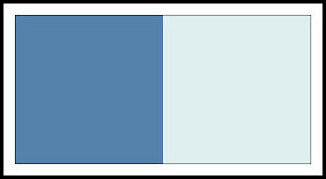
Original Colors

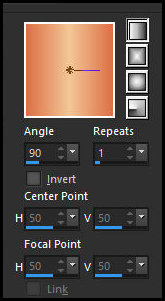
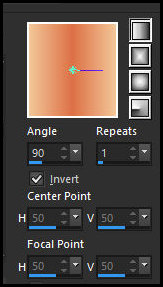
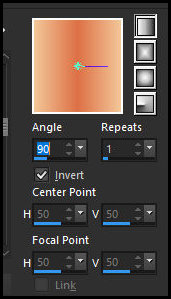
Prepare this Linear Gradient

Open a new transparent image measuring 950x600px.
Paint with the gradient.
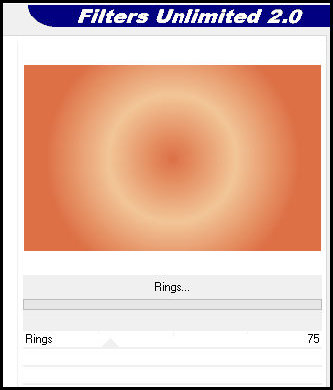
Effects / Plugins / Unlimited 2 / FF Gallery A / Rings

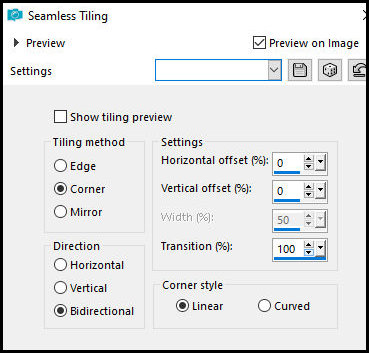
Effects / Image Effects / Seamless Tiling

Effects / Edge Effects / Enhance More
Add a new layer.
Paint with the gradient with INVERT checked.

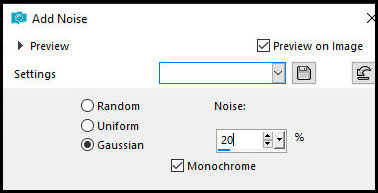
Adjust / Add / Remove / Add Noise

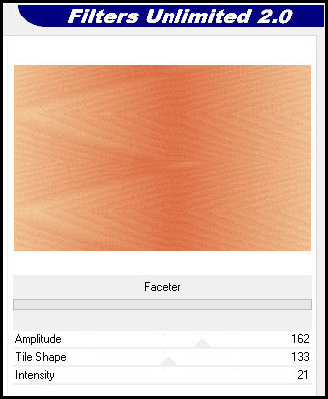
Effects / Plugins / Unlimited 2 / FF Gallery M / Faceter

Adjust / Sharpness / Sharpen
Layers / Properties / Blend Mode: Overlay
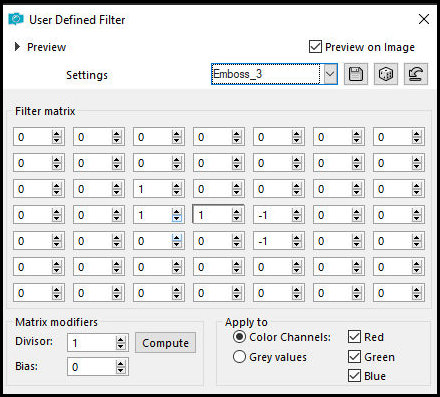
Effects / User Defined Filter / Emboss 3

Add a new layer.
Selections / Select all.
Copy the female misted tube.
Paste it into the selection.
Select none.
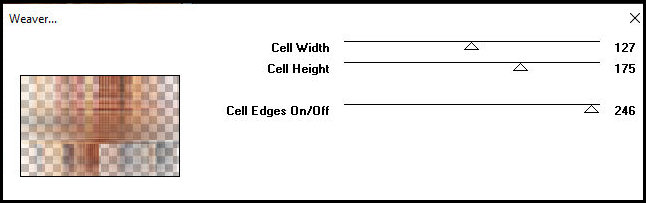
Effects / Plugins / Toadies / Weaver

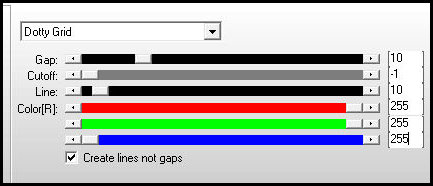
Effects / Plugins / AP [Lines] / Silver Lining

Effects / Edges Effects / Dilate
Layers / Properties / Blend Mode: Luminance
Add a new layer
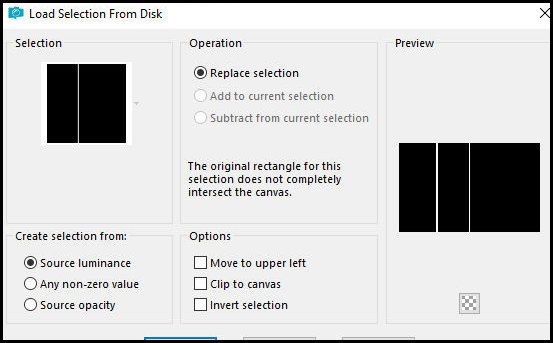
Selections / Load selection from disk / Selection [01.10.2028-ML]

Paint with the dark color
Select none
Drop shadow: 1 1 75 2 black
Add a new layer
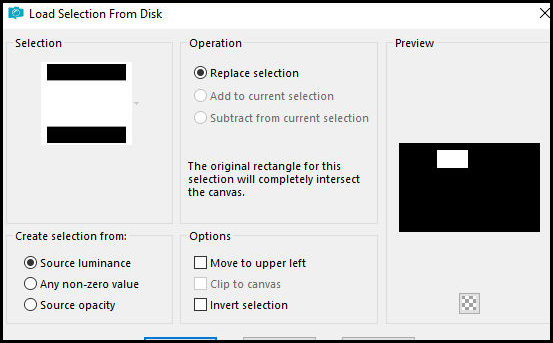
Selections / Load selection from disk / Selection [01.10.2025.1-ML]

Paint the selection with the previous gradient with INVERT checked

Add a new layer
Copy the female misted tube
Paste it into the selection
Adjust / Sharpness / Sharpen
Merge down
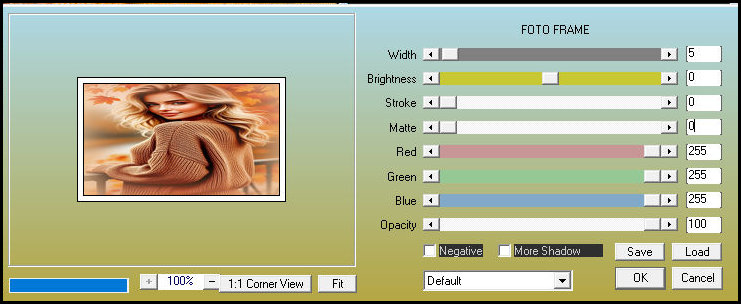
Effects / Plugins / AAA Frames / Foto Frame

Select none
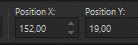
Activate the Pick Tool and set: X=152 - Y=19 - Press M

Layers / Duplicate
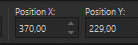
Activate the Pick Tool Tool and set: X=370 - Y=229 - Press M

Layers / Duplicate
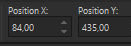
Activate the Pick Tool and set: X=84 - Y=435 - Press M

Merge Down - apply twice
Drop Shadow: 0 0 55 10 black
Copy the misted tube (adjust the size, if necessary)
Paste as a new layer
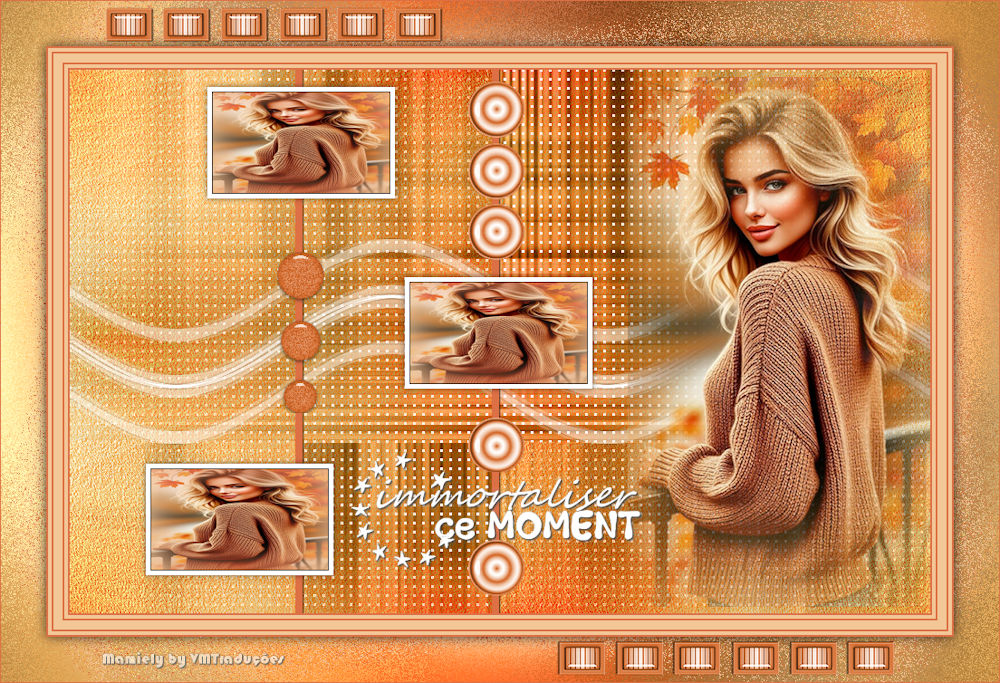
Position according to the model
Adjust / Sharpness / Sharpen
Copy the tube [Deco-ML]
Paste as a new layer
Layers / Arrange / Move down - apply 3 times
Activate the top layer
Copy the tube [Deco-01-ML]
Paste as a new layer
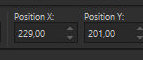
Activate the Pick Tool and set: X=229 - Y=201 - Press M

Copy the tube [Deco-02-ML]
Paste as a new layer
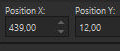
Activate the Pick Tool and set: X=439 - Y=12 - Press M

Copy the text [texte Immortaliser ce moment]
Paste as a new layer
Position according to the template
Edit / Copy Special / Copy Merged (paste as a new layer and minimize for later use)
Border:
2px / dark color
4px / light color
2px / dark color
10px / light color
2px / dark color
4px / light color
2px / dark color
Selections / Select all
Border: 50px / dark color
Selections / Invert
Activate the minimized image and copy
Paste into the selection
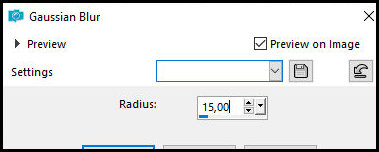
Adjust / Blur / Gaussian Blur: 15

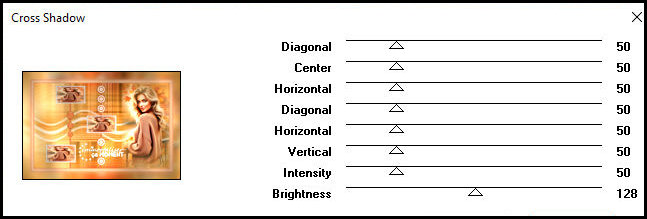
Effects / Plugins / Graphic Plus / Cross Shadow

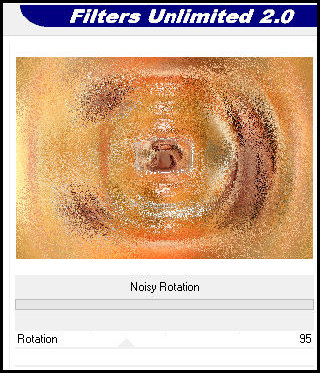
Effects / Plugins / Unlimited 2 / Noise Filters / Noisy Rotation

Selections / Invert
Drop Shadow: 0 0 75 20 black
Select none
Copy the tube [Cadre-ML]
Paste as a new layer
Border: 1px / dark color
Image / Resize: 950px (width)
Place signatures
Merge all
Save as jpeg